What is Canva? Key Features, Advantages, Pricing, and How to Use Canva EASY
The entire design-making process has been made completely easy using Canva where anyone can make designs of their social media posts, presentations, business cards, CVs, videos, marketing stuff, and more using the drag-and-drop interface without requiring any design skills at all. Moreover, nowadays it even provides some artificial intelligence features for image generation, content writing, photos editing and quick designs creation.
Here is the guide that covers everything about Canva: from its definition to step-by-step usage instructions.
What is Canva?
Canva is a web-based graphic design software through which anyone, regardless of who they are, whether a person, a company, a teacher, or a content creator, can make graphics that look like professional work without knowing anything about graphic designing. It runs in the web browser itself and also has its mobile and desktop applications.
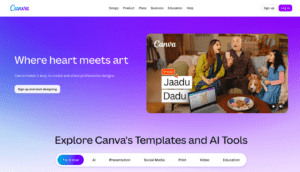
Canva allows you to access several thousand designs in the form of pre-made templates and objects that you can use for creating graphics, presentations, logos, videos, websites, print marketing materials, etc.
Features of Canva
1. Drag and Drop Interface
You can insert the elements into your designs simply using Canva’s intuitive drag and drop interface.
2. Several Thousand Pre-Made Templates
Canva provides templates for all types of design work, which include:
- Instagram Posts
- Facebook Covers
- YouTube Thumbnails
- Presentations
- Flyers
- Posters
- Business Cards
- Invitations
- Logos
- Resumes
- Certificates
Simply select a template and customize it with your own content.
3. AI-Powered Design Tools
Canva includes several AI features through its AI tools and Magic Studio, such as:
- AI Image Generator
- Magic Design
- Magic Write
- Background Remover
- Magic Edit
- Magic Eraser
- AI Presentation Generator
- AI Photo Editing
These tools help users generate designs, edit images, and create written content much faster.
4. Photo & Video Editing
Beyond graphic design, Canva allows users to:
Crop images
Remove backgrounds
Apply filters
Add animations
Edit videos
Insert transitions
Add subtitles
Trim video clips
This makes it a versatile platform for creating both static and video content.
5. Brand Kit
Businesses can upload their:
- Logo
- Brand colors
- Fonts
The Brand Kit helps maintain a consistent visual identity across all designs.
6. Team Collaboration
Canva allows multiple users to collaborate on the same project in real time. Team members can leave comments, edit designs together, and share projects through a simple link.
7. Cloud Storage
Everything is automatically backed up in the cloud and can be edited anytime and anywhere via any device.
Canva Advantages
The following are among the biggest benefits of using Canva:
- User-friendly design
- Hundreds of editable templates
- Artificial intelligence-enabled creativity
- Big collection of stock images, videos, icons, and illustrations
- Cloud-based editing
- Multiuser collaboration
- Multiple file types supported
- Great for personal, education, and business uses
Simplest Process of Using Canva
Step 1: Registration
Open Canva website or download its app. Register yourself using your email id, Google, Apple or Facebook accounts.
Step 2: Select Design Category
Choose the type of design you wish to create from the homepage like an Instagram post, presentation, flyer, resume or design of a custom size.
Step 3: Select Template
Choose a template from the Canva templates for your use.
Step 4: Customize Your Design
Customize your design by substituting the placeholders, uploading images of your choice, choosing appropriate colors, fonts and shapes/icons.
Step 5: Use AI (Artificial Intelligence) Features (Optional)
You can use Canva’s AI features to:
- Generate text with Magic Write
- Create AI images
- Remove backgrounds
- Edit photos
- Generate complete design concepts
These features can significantly reduce the time needed to create polished visuals.
Step 6: Download or Share
Once your design is complete, download it in formats such as PNG, JPG, PDF, MP4, or GIF. You can also share it directly via a link or publish it to supported social media platforms.
Canva Pricing
Free Plan
The free plan includes:
- Thousands of templates
- Basic editing tools
- Free photos and graphics
- Cloud storage
- Limited AI usage
- Canva Pro
Canva Pro includes:
- Premium templates
- Millions of stock assets
- Brand Kit
- Background Remover
- Magic Resize
- More AI credits
- Additional cloud storage
Canva Teams
Designed for businesses and organizations, Canva Teams adds collaboration features, shared brand management, and administrative controls. Pricing varies depending on the number of users.
Pros and Cons
Pros
- Easy to learn
- No professional design skills required
- Extensive template library
- Powerful AI features
- Available on web, desktop, and mobile
- Great for collaboration
- Suitable for individuals and businesses
Cons
- Many premium assets require a paid subscription
- Advanced graphic design capabilities are less extensive than specialized software
- Some AI features have usage limits on free accounts
Who Should Use Canva?
Canva is suitable for:
- Students
- Teachers
- Small business owners
- Social media managers
- Freelancers
- Bloggers
- Marketing professionals
- Content creators
- Entrepreneurs
- Anyone who wants to create professional designs quickly
Is Canva Worth It?
In most cases, Canva provides a great combination of usability, creativity, and AI productivity features. The free version covers the basic needs of many users, whereas Canva Pro allows unlocking all the advanced features and using premium materials for those who need more from their software solution. Be it studying, working, or creating posts for social media channels – Canva will help you create professional designs effortlessly.
Frequently Asked Questions (FAQs)
Is Canva free to use?
Yes. Canva provides a free package with plenty of templates and design tools. Premium options are unlocked by purchasing paid versions of Canva.
Is Canva suitable for beginners?
Yes. Canva is created especially for those who do not have any design skills because of the intuitive drag-and-drop interface and plenty of templates that will help you get started.
Does Canva provide AI tools?
Yes. Canva provides some AI tools including Magic Write, Magic Design, AI image generation, background removal, and AI photo editing.
Is Canva useful for business purposes?
Of course. Canva is a platform which is extensively used by organizations to create advertising graphics, presentations, social media content, logos, etc. Collaboration on projects can even be done using the same workspace.
Can Canva be used in the mobile application?
Yes, as Canva is not only a website but also an application for Android and iOS devices.
Canva is a graphic design software through which different types of graphics and designs can be created.